
Building the form itself is usually the easy part. The harder part starts after someone clicks Submit: where the data goes, how it is validated, how bots are blocked, and how the site knows whether to show success or failure. This guide turns that entire process into a workflow you can complete with ChatGPT and VIXNODE.
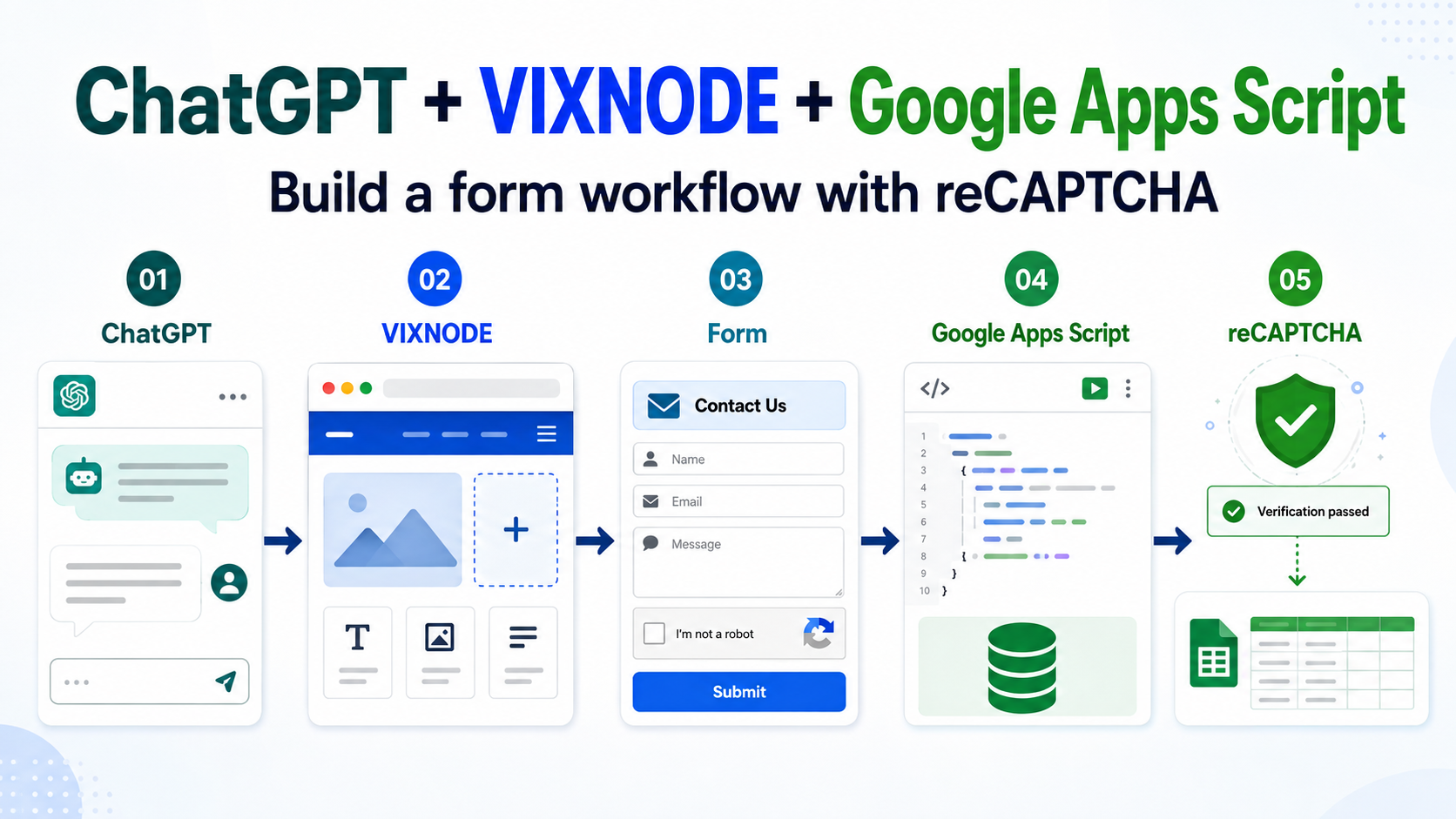
Build the integration step by step
Follow the steps in order, or open only the stage you are working on. Each item expands inline while the vertical workflow remains visible.
Tell ChatGPT what kind of form you needDefine the fields, interaction states, and services you plan to connect later.
Start with the user-facing requirements. For a contact form, that might include name, email, phone, and message fields, plus validation, loading, success, and error states.
Build the front-end form with VIXNODEFinish the UI, validation, loading state, and mobile experience first.
You can complete the front end before the Google Apps Script Web App URL exists. Focus on labels, required fields, email validation, responsive layout, loading, success, and failure states.
Ask ChatGPT to guide the Google Apps Script setup and write Code.gsGo from Google Sheet and Apps Script project to a deployed Web App.
You do not need to start by studying the entire Apps Script documentation. Give ChatGPT the exact field names used by your site and ask it to guide the setup and write the complete Code.gs for that data structure.
If Google Drive is connected to ChatGPT, you can ask it to create or update the Google Sheet, inspect the current columns, or work with related files in Drive.
You can also create the Google Sheet or Apps Script yourself, then give ChatGPT the URL so it can continue from the real file and current field structure.
/exec URL.Prepare reCAPTCHAThe browser gets the token; Google Apps Script performs the real verification.
For a public form, reCAPTCHA helps reduce automated spam. The front end should obtain the token and send it with the form data. Google Apps Script should then verify that token before processing or storing the submission.
Give ChatGPT the Web App URL and reCAPTCHA detailsMake sure the website payload matches what Google Apps Script expects.
If the script expects a specific POST format or JSON response shape, include that information in the same request.
Let ChatGPT + VIXNODE complete the integrationHandle fetch, loading, duplicate prevention, and success or error states.
At this stage, the website needs to collect the form values, obtain the reCAPTCHA token, send the request, and update the interface based on the Apps Script response.
- Validate required fields and email format
- Show a loading state while submitting
- Disable the button to prevent duplicate submissions
- Clear the form after success
- Reset reCAPTCHA after success
- Restore the form and show a useful message after failure
Test, debug, then publishTest both successful submissions and intentional failure cases.
A complete test should look like this: fill out the form → complete reCAPTCHA → submit → Apps Script receives and verifies the request → Google Sheets receives a new row → the website shows success.
- Required fields block invalid submissions
- Invalid email format shows a useful message
- Missing reCAPTCHA does not result in a successful submission
- Failed reCAPTCHA verification does not write to the Sheet
- An Apps Script or network failure does not leave the form stuck in Loading
- An error response is not incorrectly treated as success
Keep front-end and Apps Script responsibilities separate
Anything delivered in public HTML or JavaScript can be inspected by visitors. Keep only browser-side information on the site, such as the reCAPTCHA Site Key and the public Web App endpoint. Secrets, private validation values, and security decisions belong on the Apps Script side.
Frequently asked questions
Do I need to know Google Apps Script before I can build this?
No. You can give ChatGPT your field names and desired data flow, then ask it to write Code.gs and guide you through the Apps Script setup and deployment step by step.
How can the Google Drive Tool help?
If Google Drive is connected, ChatGPT can help create or modify a Google Sheet, inspect its columns, and work with related files. You can also create everything yourself and then provide the URL to ChatGPT.
Is front-end reCAPTCHA validation enough?
No. The front end should obtain the token, but the actual verification should happen in Google Apps Script before the submission is accepted or stored.
Can the Google Apps Script Web App URL appear in the website code?
A public Web App endpoint is normally used by the browser, so the endpoint itself is not a secret. Security should come from server-side verification, input validation, and appropriate permissions.
Do I need to rebuild everything when I add a form field?
No. Tell ChatGPT which fields were added, then update the website payload, Code.gs, and Google Sheet columns together so they stay aligned.