
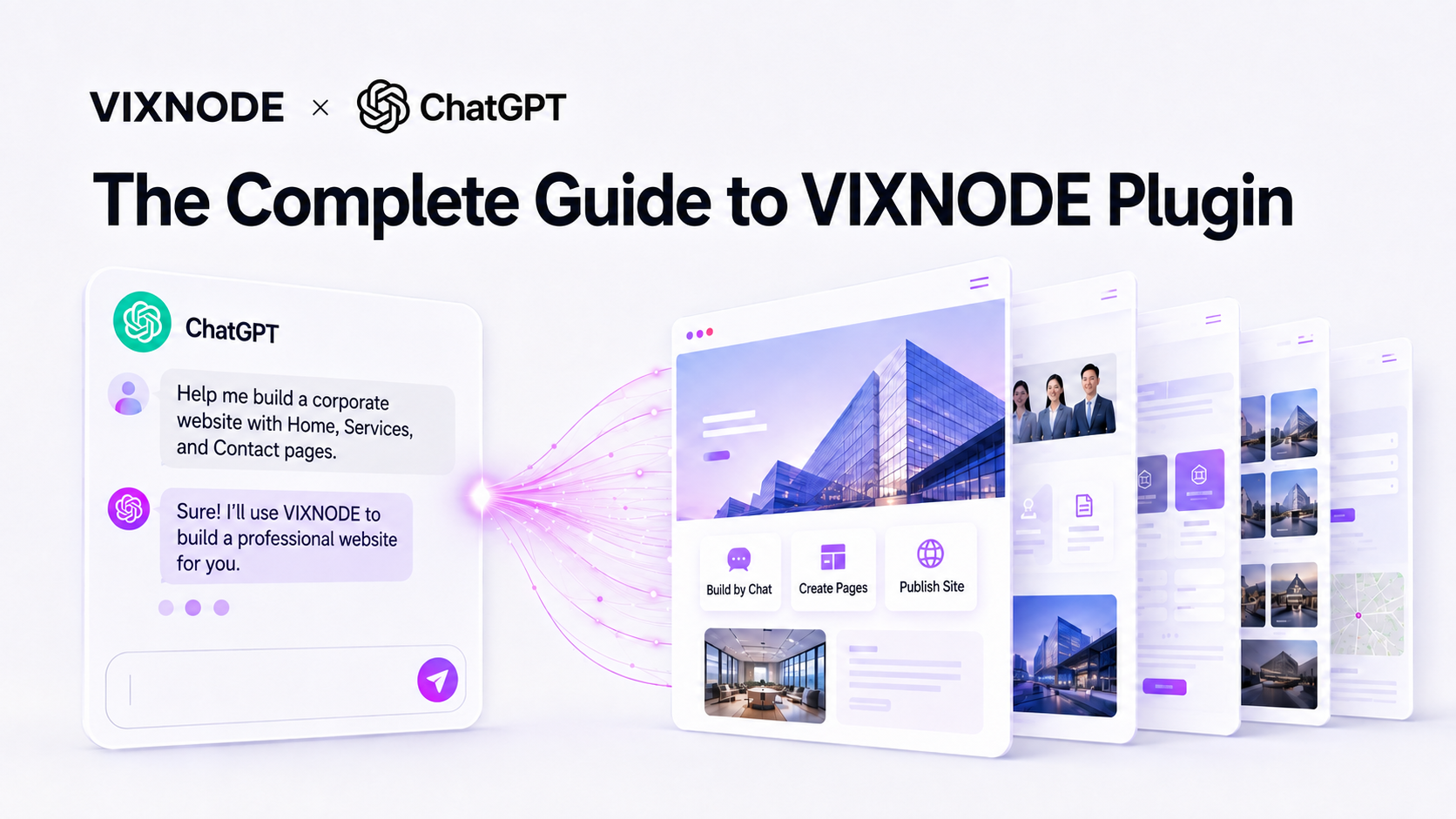
VIXNODE Plugin connects VIXNODE’s website-building and management capabilities with ChatGPT Plugins. Once connected, you can describe what you need in everyday language and work with projects, pages, designs, images, versions, and SEO. Actions that create, modify, or publish content still include the required authorization, preview, and confirmation steps.
How to connect VIXNODE Plugin
- Open VIXNODE Plugin.
- Select Connect.
- Sign in and authorize your VIXNODE account.
- Return to ChatGPT and describe the website task in natural language.
The documented connection flow uses Dynamic Client Registration (DCR) to handle application registration and authorization.
21 VIXNODE tools and prompt examples
The tools below follow a typical website workflow. Opening one item automatically closes the others.
Check the currently connected VIXNODE account, plan, and available quotas.
Prompt examples
Tell me which VIXNODE account is currently connected.Check my VIXNODE plan and remaining quotas.List the VIXNODE websites available to the connected account.
Prompt examples
List all of my current VIXNODE websites.I want to update our company website. Let me choose the target project first.Create a new website project after confirming its name.
Prompt examples
Create a new website named “Bread Workshop Official Website.”Create a separate website project for our September product launch.Show the pages contained in a selected website.
Prompt examples
List all pages in the Bread Workshop website.Show the page list before I update the Contact page.Search pages across every available website project.
Prompt examples
Find which website contains the “Summer 2026 Campaign” page.I forgot which project contains the product page. Help me locate it.Retrieve reference themes, visual styles, and color directions.
Prompt examples
Show suitable reference themes for a modern technology website.Suggest several themes for a premium artisan bakery brand.Create a page from a prompt, reference image, VIXNODE theme, or custom style.
Prompt examples
Create a Home page with a hero, brand story, featured products, and a clear call to action.Create an About page that follows the approved website style.Building a multi-page website
Start by listing every required page and approving one shared Main Layout. Create general content pages one at a time. Add a Child Layout only when a group of articles, products, case studies, or documentation pages needs the same additional structure. Before applying changes, review shared navigation, internal links, and both desktop and mobile previews.
Retrieve the latest editable page content before making changes.
Prompt examples
Read the latest Home page content before modifying it.Show the current structure and text of the Contact page.Update text, images, structure, or visual design, then publish after confirmation.
Prompt examples
Change only the Home page headline to “Every day starts with great bread.”Add a comparison section and FAQ to the Services page while preserving its style.Retrieve the version currently visible to website visitors.
Prompt examples
Show the currently published Home page.Compare the editable version with the published version.List historical versions and their modification times.
Prompt examples
List the most recent versions of the Home page.Find the version from before yesterday’s changes.Retrieve the complete content of a selected historical version.
Prompt examples
Open yesterday morning’s Home page version.Show the previous version before I decide whether to restore it.Compare a version with the previous one and summarize the differences.
Prompt examples
Compare the latest two Home page versions in plain language.Find which change caused the navigation to disappear.Display uploaded project images for selection.
Prompt examples
Open the image library so I can choose a Home page hero.Let me select three product photos from the project library.Retrieve or preview a single image or thumbnail.
Prompt examples
Preview the current Home page hero image.Confirm whether I selected the dark-background brand logo.Add an image to a project library; use the VIXNODE upload UI for large files whenever possible.
Prompt examples
I uploaded the hero image. Apply the provided image path to the first Home page section.Replace the three product images with the uploaded image paths I provided.Read the page title, meta description, and JSON-LD data.
Prompt examples
Check the current SEO title and description for the Home page.Confirm whether the Product page includes structured data.Retrieve JSON-LD examples such as Article, FAQPage, or Product.
Prompt examples
Provide an Article structured-data example for this post.Generate a FAQPage example for review before applying it.Update SEO metadata and JSON-LD after explicit approval.
Prompt examples
Write an SEO title and meta description for the Home page, but show them before publishing.Create complete Article JSON-LD and ask for approval before applying it.Retrieve public HTML to analyze content order and structure.
Prompt examples
Analyze this reference URL’s content sections without copying its wording.Review this public page’s HTML and summarize its main layout.Retrieve VIXNODE feature guides, steps, and FAQs.
Prompt examples
Find the official instructions for connecting a custom domain.Show the VIXNODE guides for SEO, version history, and resource files.Recommended image-upload workflow
For large images, strongly prefer the VIXNODE upload UI or upload them directly on the VIXNODE platform.
Sending large image data through ChatGPT can consume significantly more ChatGPT usage.
After uploading, provide the image path to AI and ask it to apply the image to a specific page or section.
Download VIXNODE website resources
Add these references to a ChatGPT Project or provide them as conversation sources to improve stability, layout accuracy, and visual consistency.
VIXNODE Page Creation Instructions
Guidance for page types, layout relationships, identifiers, previews, and confirmation.
AI Website Art Direction Instructions
Visual direction, brand character, and art-direction guidance for more consistent design results.
If a reference conflicts with the user’s current request, follow the user’s newest and clearest instruction. Always review the target website, page, layout, content, and scope before applying changes.
ChatGPT Project Context
This example can be added to ChatGPT Project instructions or supplied as project context in a conversation so that future VIXNODE work follows consistent content, visual, image, and linking rules.
# Default Plugin

@VIXNODE

# Starting Project

@VIXNODE `Bread-Workshop`

# Project Theme

Build the website around an artisan bread workshop. Introduce handmade bread, baking classes, recipes, ingredient knowledge, and workshop events.

# Website Goals

1. Communicate the workshop’s brand philosophy and commitment to craftsmanship.
2. Introduce classes, events, and participation details.
3. Share practical bread recipes and baking knowledge.
4. Establish a warm, professional, and approachable brand image.
5. Guide visitors to explore classes, book an experience, or contact the workshop.

# Primary Audiences

* Beginners interested in handmade bread
* Baking enthusiasts who want to improve their skills
* Visitors looking for parent-child experiences or group activities
* Readers interested in ingredients, fermentation, and bread-making techniques

# Content Categories

| Category | Content Direction |
| --- | --- |
| About the Workshop | Brand story, teaching philosophy, instructors, and studio |
| Baking Classes | Course content, difficulty, duration, and suitable participants |
| Bread Recipes | Ingredients, quantities, steps, and practical tips |
| Baking Knowledge | Flour, yeast, fermentation, tools, and storage |
| Events | Trial sessions, family classes, and private group workshops |
| Workshop Journal | Class records, student work, and everyday stories |

# Brand and Visual Direction

Brand personality:

* Warm and natural
* Honest and handmade
* Simple and thoughtful
* Professional yet approachable
* Rooted in everyday life

Draw visual inspiration from flour, dough, baked crust, wooden worktables, linen, and traditional baking tools.

Use flour white, wheat beige, bread golden brown, deep wood brown, with small accents of sage green or brick red.

Avoid arbitrary blue-purple technology gradients, neon effects, glassmorphism, excessive rounded cards, or a generic AI-generated website look.

# Content Writing Principles

1. Use a natural, friendly, and easy-to-understand tone.
2. Explain professional baking terms before using them.
3. Recipes must clearly list ingredients, quantities, timing, steps, and precautions.
4. Course pages must explain content, difficulty, duration, and suitable participants.
5. Prioritize specific and useful information over empty promotional language.
6. Do not invent instructors, prices, addresses, event dates, certificates, or awards.
7. When essential information is missing, ask the user or leave clearly labeled placeholders.
8. Avoid unnecessary duplication of existing content.

# Images and Hero Visuals

1. Focus on finished bread, the making process, natural ingredients, baking tools, and the workshop space.
2. Keep the style natural, warm, bright, and authentically handmade.
3. The default hero-image size is `1672 × 941 px`.
4. Ingredients, tools, and production methods shown in images must be realistic.
5. When modifying a page and adding a hero image, add `data-meta="true"` to the `<img>` node.
6. VIXNODE image paths use the format `/API/GetImage/...`.
7. Every image must have an accurate `alt` description.

# Link and File Rules

1. Use relative paths for internal website links.
2. Link only to pages that actually exist.
3. When creating a page, use `filename` to specify its full file path.
4. When modifying a page, preserve its current filename and page relationships.
5. Never guess or invent unknown project IDs, page IDs, Layout IDs, or Placeholder IDs.

Internal-link examples:

* `classes/index.html`
* `recipes/sourdough-bread.html`
* `../index.html`
* `../classes/beginner-bread.html`

# Reference Guidelines

When creating or modifying VIXNODE pages, follow:

https://news.vixnode.com/vixnode-page-creation-instructions.md

For website visual design, consult the project resource:

`AI-WEBSITE-ART-DIRECTION-INSTRUCTIONS.md`

If a reference guideline conflicts with the user’s current request, follow the user’s newest and clearest instruction.
Important checks
- Confirm the target website, page, and visual source before execution.
- Read the latest page before modifying it.
- State whether a change affects the entire website, a page group, or one page.
- Upload images through VIXNODE first, then provide their paths.
- Review the preview before creating, modifying, or publishing.
- Review the SEO title, description, and JSON-LD before publishing.