
A reliable multi-page website starts with one reusable Main Layout. From there, content pages can either use that Main Layout directly or, when a group of pages needs an additional shared structure, inherit through an optional Child Layout.
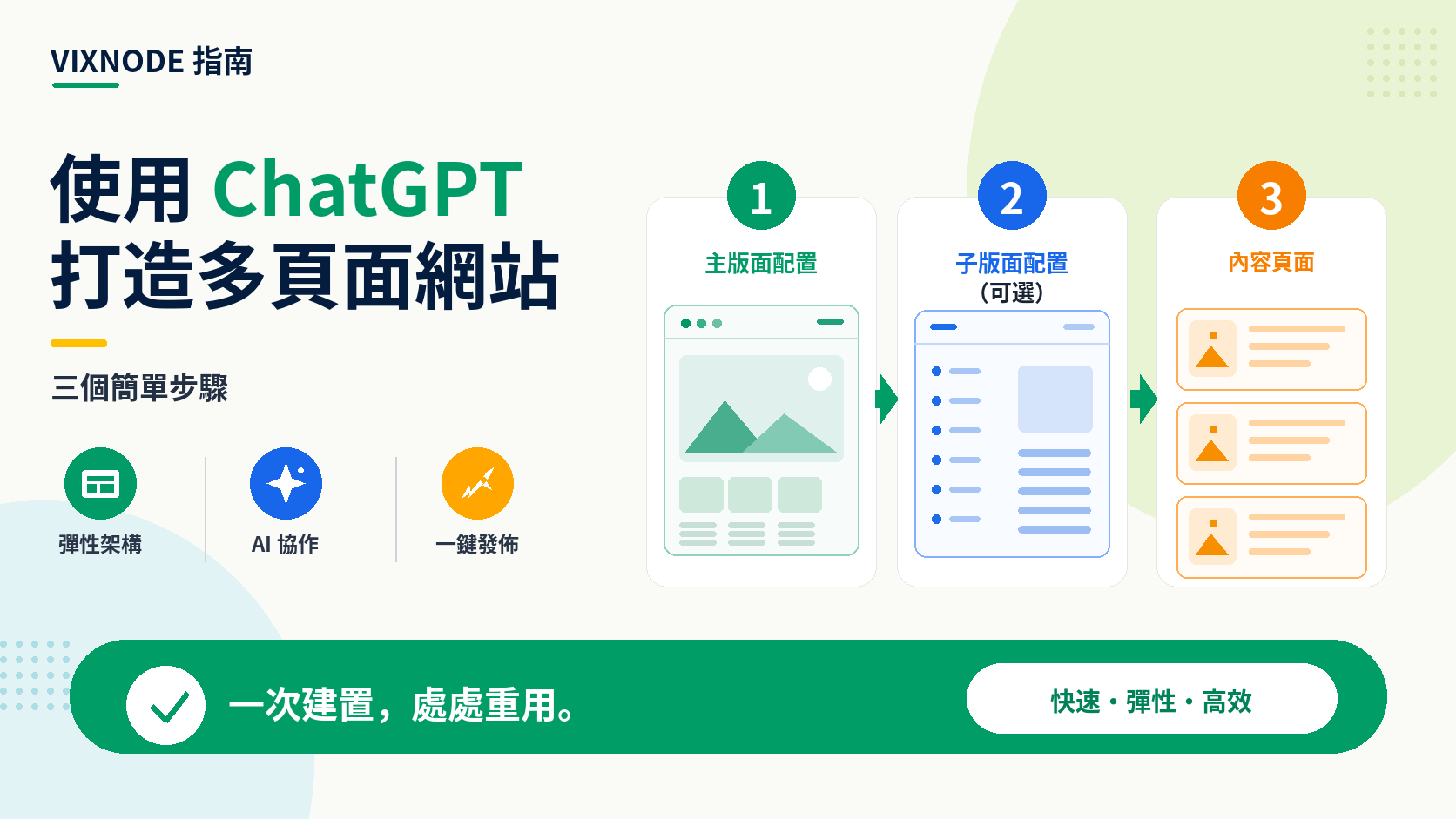
Use the reference instructions when creating or updating Main Layouts, optional Child Layouts, and layout-based content pages.
Download instructions (.md)Main Layout → Content Page
Use this when the Main Layout already provides all the shared regions the page needs. The content page is a layoutPage whose layout points directly to the Main Layout.
Main Layout → Child Layout → Content Page
Use this only when several pages need another reusable layer, such as a shared article header, sidebar, product shell, or documentation structure.
Start with the website system, not a single page
Before generating HTML, decide what is truly global and what only belongs to certain page groups. The Main Layout is the shared foundation. A Child Layout is optional—not a mandatory second step.
Step 1: Create the Main Layout
The Main Layout is the reusable base for the multi-page website. It owns its placeholder slots. Each slot uses the Main Layout page ID as data-layout and a unique data-nodeid.
Step 2: Choose which layout each content page should use
For every new content page, choose the layout that already contains the shared structure you want that page to inherit. A layoutPage can use either a Main Layout or a Child Layout.
Step 3: Add a Child Layout only when you need one
A Child Layout is an optional intermediate layer. It inherits from a parent Main Layout and can introduce child-owned slots inside the inherited structure. It is useful when multiple content pages should share a second-level pattern.
layout to it.Step 4: Create content pages from either layout level
A layoutPage does not create its own placeholders. It uses the existing slots from whichever layout you select. If you select the Main Layout, copy the Main Layout slot IDs exactly. If you select a Child Layout, copy the Child Layout slot IDs exactly.
About page → Main Layout
Best when the page only needs the global website shell and the Main Layout’s existing content regions.
Guide page → Child Layout
Best when the page needs an inherited guide structure shared with other guide pages.
Step 5: Preview, validate, then confirm
Before execution, verify that the selected layout is the one the content page is intended to inherit. Then validate slot ownership, top-level structure, and identifier reuse. Generate a preview first and execute only the exact confirmed result.
- Use the Main Layout when changing site-wide shared structure.
- Create a Child Layout only when a second reusable structure is genuinely needed.
- For each content page, explicitly choose whether it uses the Main Layout or a Child Layout.
- A layoutPage reuses existing slots from its selected layout and does not create new placeholders.
- Do not add
<html>,<head>, or<body>around layout-related HTML fragments. - Preview before confirmation-protected execution.
A clearer multi-page workflow
This keeps the architecture as simple as possible. Many websites only need a Main Layout plus content pages. Child Layouts become useful when a subset of pages needs another shared structure, but they should not be introduced automatically.
FAQ: Main Layouts, Child Layouts, and Content Pages
Quick answers to the questions people most often run into when building a multi-page website with VIXNODE and ChatGPT.
Do I always need a Child Layout?
No. If the Main Layout already has everything the page needs, use the Main Layout directly. Add a Child Layout only when several pages need another shared structure.
When is a Child Layout useful?
Use one when a group of pages should share the same extra structure—for example, article pages with the same breadcrumb, title area, content column, and sidebar.
Can a content page use the Main Layout directly?
Yes. If the Main Layout already gives you the right shared structure, the content page can use it directly.
Can a content page use a Child Layout?
Yes. If the page belongs to a group that shares a Child Layout, choose that Child Layout instead.
How do I choose between Main Layout and Child Layout?
Use the Main Layout when the site-wide structure is enough. Use a Child Layout when the page also needs an extra shared pattern used by similar pages.
Can a content page add new placeholders?
No. A content page should fill the placeholders that already exist in the layout you selected. It should not create new ones.
Can I make new data-nodeid values for a content page?
No. Reuse the existing data-layout and data-nodeid values from the selected layout. New node IDs are only for genuinely new placeholders inside a layout that owns them.
What happens to the Main Layout slots when I create a Child Layout?
Keep them exactly as they are. The Child Layout inherits those slots, then adds its own reusable areas only where needed.
What does data-layout mean?
It tells VIXNODE which layout owns that placeholder. In practice, you should copy the value from the latest layout instead of typing or guessing it yourself.
Should layout pages include html, head, or body tags?
No. Layout-related pages use HTML fragments. Their direct top-level elements should be the valid app-place-holder elements from the layout structure.
Where should page-specific CSS or scripts go?
Put them inside a valid placeholder. Do not place a standalone <style>, <script>, text, or other element beside the top-level placeholders.
Why should I load the latest layout before creating or editing a page?
Because the layout may have changed. Loading the latest version makes sure you use the current placeholders and IDs, so content goes into the right place.
Where should I change a shared header or footer?
Change the Main Layout when you want the update to apply across the site.
What if only a group of pages needs the same new structure?
Use or update a Child Layout for that page group. This keeps the extra structure shared without affecting pages that use only the Main Layout.
What if I only want to change one page?
Edit that content page only. Leave the Main Layout and Child Layout unchanged unless you want the change to appear on other pages too.
Why do I need to preview before applying changes?
The preview lets you check the layout, content, and page structure before anything is applied.
What if the preview does not load correctly or I cannot click Confirm Execution?
Ask ChatGPT to run the preview again. If the confirmation UI still does not work, you can also ask ChatGPT to execute the update and publish it directly. If direct execution still requires confirmation, refresh the ChatGPT page and try again with a newly generated preview.
Will VIXNODE change the page after I confirm the preview?
It should apply the same version you reviewed. The confirmed HTML, IDs, and layout choice should stay the same during execution.
What if ChatGPT gets confused about the page or layout?
Tell ChatGPT which project, page, and layout you are working on, then load the latest page or layout again. You can also download Download instructions (.md) from this guide and upload the file to ChatGPT so it can follow the VIXNODE page and layout rules again. If the conversation becomes messy, starting a new chat and providing the instructions file can help you get back on track.
Ready to build the first page?
Start with the page list and one Main Layout. Then decide page by page whether the Main Layout is enough or whether a reusable Child Layout would make the structure clearer.
Open ChatGPT