
With ChatGPT and VIXNODE, you can plan, create, and manage a consistent multi-page website in everyday language—without handling the technical structure yourself.
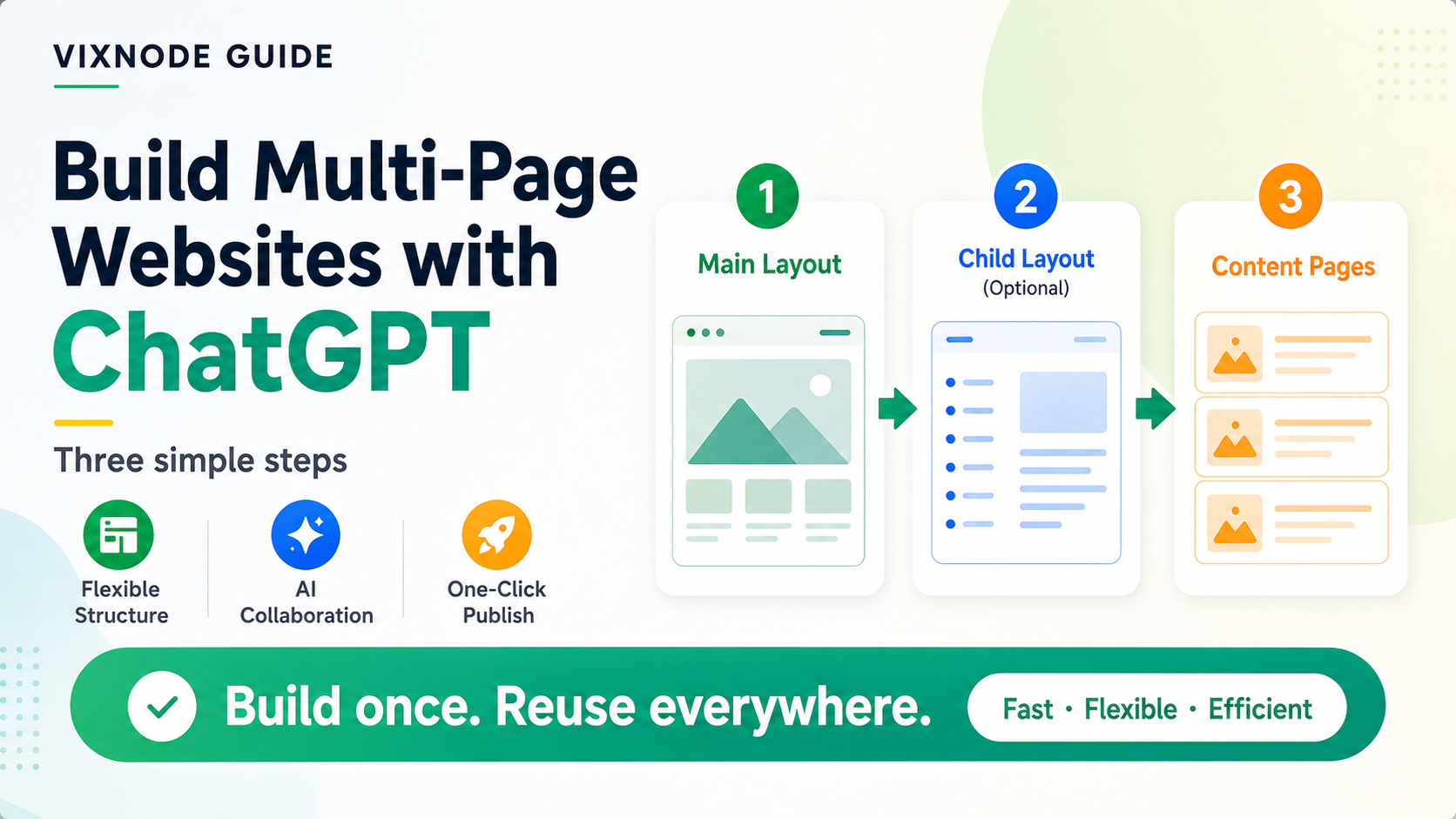
Keep this reference available when asking ChatGPT to create or update layouts and pages in VIXNODE.
Download instructions (.md)Build a website system, not separate pages
A multi-page website should feel like one connected experience. Its pages need consistent navigation, typography, colors, spacing, buttons, and responsive behavior.
The best starting point is a Main Layout. It defines the elements shared across the website, including the header, navigation, footer, content width, and overall visual language.
Step 1: Describe the whole website
Before creating a page, tell ChatGPT which pages the website needs and which elements should remain consistent. Focus on the content, design, and visitor experience rather than how the website is implemented.
Step 2: Create the Main Layout
Ask ChatGPT to establish the shared website experience before building individual pages.
When reviewing the preview, check whether the navigation supports every planned page, the design works on desktop and mobile, and the visual system is flexible enough for different kinds of content.
Step 3: Create content pages one at a time
After approving the Main Layout, create each page by explaining its purpose and required content. ChatGPT can keep it aligned with the existing website design.
A page-by-page workflow makes it easier to review content quality, heading structure, internal links, calls to action, and mobile readability.
Step 4: Add a Child Layout only when it helps
A Child Layout is useful when several related pages need the same additional format. Common examples include articles, documentation, product details, case studies, course lessons, and help-center pages.
Main Layout → Content Page
Use this for pages that only need the shared website header, footer, navigation, and visual system.
Main Layout → Child Layout → Content Page
Use this when a group of pages also shares an article format, sidebar, product structure, or another repeated experience.
Step 5: Make changes at the right level
When requesting an update, tell ChatGPT how widely the change should apply.
Step 6: Preview before applying changes
Use the preview to check both the content and the user experience. If something is wrong, describe the visible problem in plain language.
- Does the page have one clear purpose?
- Is the main message immediately understandable?
- Are the headings and sections easy to scan?
- Do the buttons and links lead visitors to the right next step?
- Does the page match the rest of the website?
- Is the mobile version clear and comfortable to use?
- Do internal links lead to the correct pages?
A practical multi-page workflow
Reusable prompt for a new page
FAQ: Building multi-page websites with ChatGPT
Quick answers for planning layouts, creating pages, and managing changes.
Do I always need a Child Layout?
No. If the Main Layout already provides everything a page needs, use it directly. Add a Child Layout only when several related pages need the same additional structure.
When should I create a Child Layout?
Create one when a group of pages repeatedly uses the same format, such as articles, products, case studies, or documentation.
Should I create every page in one request?
You can, but creating and reviewing pages in stages usually produces more reliable results. Approve the shared design first, then build pages one at a time.
Where should I change the header or footer?
Ask ChatGPT to update the Main Layout so the change can appear consistently across the website.
What if only guide pages need a new feature?
Update the guide Child Layout so the improvement applies to that page group without affecting general pages.
What if I only want to change one page?
Name the page and clearly state that the update should apply only there. Leave the shared layouts and other pages unchanged.
Why should I preview each change?
The preview lets you verify the content, design, navigation, links, and mobile experience before anything is applied.
What if ChatGPT becomes confused about the website?
Restate the project, page, and layout you want to work on. Explain whether the change applies to the whole website, one page group, or one page. If needed, start a new chat and provide a short summary or the downloadable VIXNODE instructions.
Ready to build your first page?
Start with a page list and one Main Layout. Add content pages as you need them, and introduce a Child Layout only when several pages genuinely benefit from the same additional structure.
Open ChatGPT