
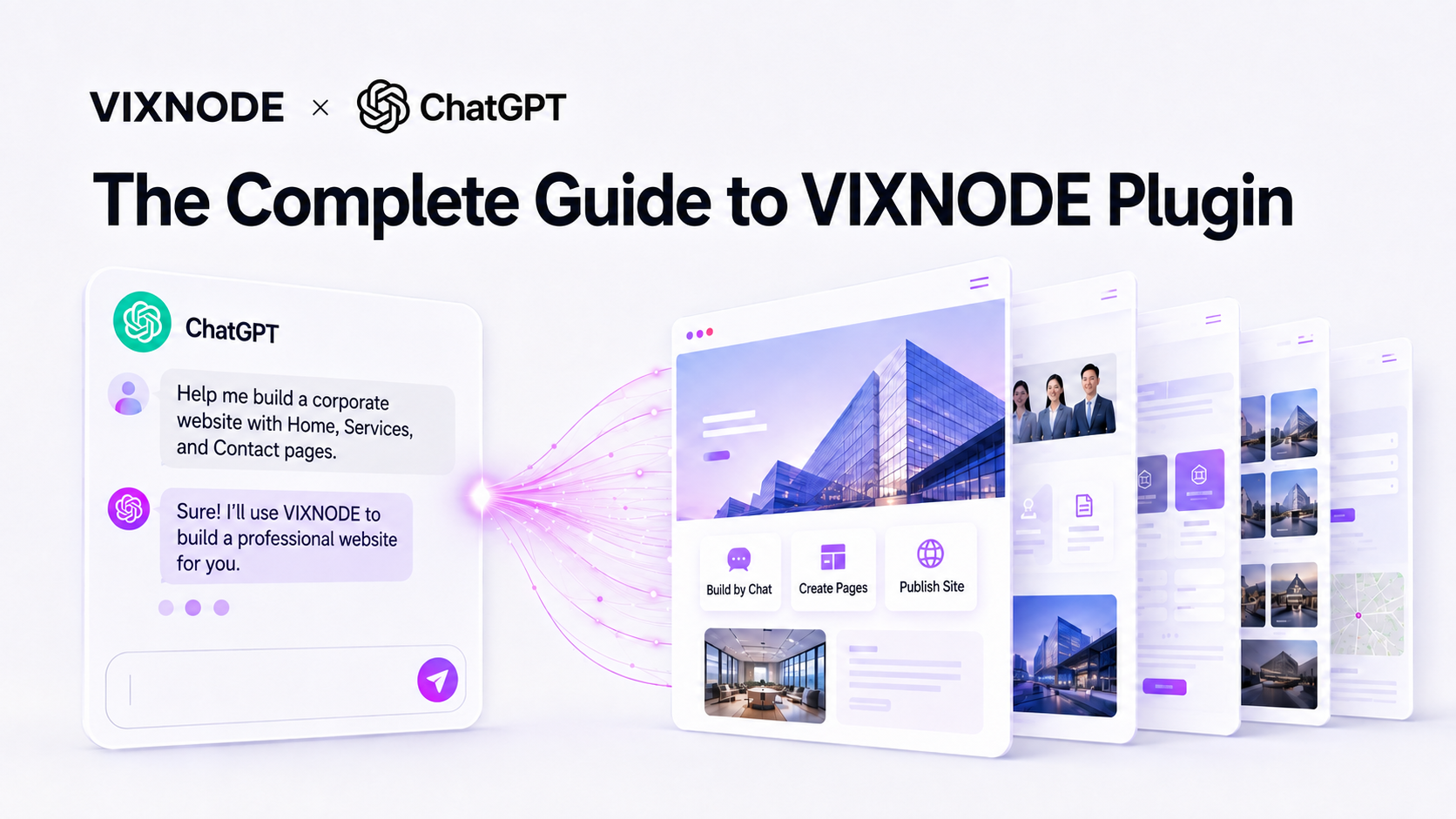
Connect your VIXNODE account to plan websites, create and edit pages, manage assets, configure custom domains, and review versions and SEO using natural language. AI selects the appropriate tools; you do not need to memorize tool names or enter project IDs yourself.
Ordinary page creation and editing starts with a preview so you can review the content, target page, and publishing options before execution. Saving a draft and publishing are separate actions: a draft update does not mean visitors can see it, while publishing replaces the live version with the latest saved content.
How to connect
- Open the VIXNODE Plugin link in this article.
- Select Connect, sign in, and authorize your VIXNODE account.
- Return to the conversation and describe the website, page, and goal.
- Confirm that AI has found the correct project before reviewing a preview or proposed changes.
After connecting for the first time, try: “Check the connected VIXNODE account and list the websites I can manage so I can choose one.” Once you select a website, continue with the scenarios below.
See ChatGPT × VIXNODE in Action
Watch how ChatGPT and the VIXNODE Plugin work together to build and manage websites through conversation.
From building a website to everyday maintenance
The following examples follow a “Bread Workshop” website through its lifecycle. Each prompt also works independently; replace the website name and details with your own real information. For actions that require confirmation, wait until AI shows the content or preview before approving it. Do not paste advance approval for content you have not reviewed.
When to use: When connecting for the first time, managing several websites, or checking which account is active.
Check the connected VIXNODE account, plan, and quotas, then list the websites I can manage.Open “Bread Workshop” and list its pages and current domain settings. If more than one project has that name, let me choose first.If the wrong account is connected, say: “I want to use a different VIXNODE account. Help me reconnect.” If you cannot find a page, say: “Search across my websites for ‘Course Introduction’ and list matching pages so I can choose.”
Next step: Confirm the project before preparing content. If you do not have a website yet, continue with the next scenario.
When to use: When starting a website or preparing to add several pages.
I want to create a “Bread Workshop” website with our brand story, baking classes, recipes, and contact details. Check for an existing project with that name first; if there is none, help me create one.Plan the Home, Classes, Recipes, and Contact pages and a shared Main Layout. Explain each page’s purpose and navigation order; do not create any pages yet.After reviewing the structure, you can say: “Recipe pages need shared ingredient and step fields. Consider whether they need a Child Layout; the other pages should use the Main Layout.” Use a Child Layout only when a group of pages needs additional shared structure.
Next step: Approve the structure before choosing a visual direction and preparing assets.
When to use: Before generating a page or replacing existing assets.
The brand should feel warm, natural, and handmade, with wheat beige and dark brown. Show suitable reference themes and propose fonts, colors, and image direction for review.Analyze the reference URL I provide and summarize its content order and layout features. Use our own brand information for the text.Open the “Bread Workshop” image library so I can choose a Home page hero. Preview the selected image to confirm its content and crop.I uploaded a course video and course PDF through the platform. Find them in this project’s video and file libraries, verify their actual paths, and then add them to the page.Upload large assets through the platform interface first. If AI needs to upload a file, say: “Upload the course PDF I provide to the private resource library for ‘Bread Workshop’; confirm its filename and location first.” Tools handle chunking according to file size; you do not need to specify chunk numbers in your prompt.
Next step: Generate the page after approving the style and assets. If visitors need a download, explicitly request public access and confirm the public location and whether an existing file will be overwritten.
When to use: After choosing a project, structure, and visual direction.
Create a Home page for “Bread Workshop” with a hero, brand story, class introduction, and contact button. Use the image I selected and the approved Main Layout. Ask about missing facts; do not invent prices or an address. Show me a preview first.Create a beginner baking course page using the approved layout, with the intended audience, course content, and enrollment details. Use classes as the path and beginner-bread as the filename. Check for duplicates and show a preview first.For a trial draft, say: “Generate a course page preview. After confirmation, save it only as a private draft; do not publish.” Review the target project, content, links, and public/publishing options, then use the preview interface’s confirmation action.
Next step: Execute only after reviewing the preview. Continue editing a draft as needed, and check SEO when preparing to make it public.
When to use: When updating copy, replacing images, adding sections, or improving mobile presentation.
Read the latest saved Home page for “Bread Workshop”, then change the headline to “Handmade days begin with a little dough.” Preserve the images, layout, and other text. Show a preview first.Add the FAQ I provide and the course video to the course page. Preserve the existing content, navigation, and layout relationship, check the mobile presentation, and show a preview.If the change should stay offline, add: “Update the draft only; do not publish. Keep the page’s current public status.” To restrict access too, explicitly say “Make the page private.” These are separate settings.
Next step: Confirm the edit scope and publishing options. Ordinary editing uses the preview workflow; there is no need to request a direct-write tool.
When to use: When content is ready or you want to improve search titles and snippets.
Read the beginner baking course page’s current SEO title and description. Propose changes based on its actual content and show a before-and-after comparison.Get an Article structured-data example for this sourdough tutorial and prepare complete JSON-LD using the approved article details. Ask if the author or date is missing. Do not apply or publish it yet.After reviewing the complete proposal, explicitly confirm which SEO settings to apply. The SEO modification tool publishes the SEO settings; it is not a draft-only save.
Next step: Once SEO and page content are approved, proceed to publication.
When to use: When a private draft is complete or shared layout changes need to reach public pages.
The course page draft is ready. Check the latest saved content, explain whether publishing will make the private page public and which live content will be replaced, then let me confirm before publishing.The Main Layout has changed. List the currently public pages in “Bread Workshop” and the scope of republication for review. Do not make private pages public.After publishing, say: “Retrieve the published course page and verify its headline, video, and download link against the approved version. Provide the actual public URL.” If the tool reports queued or publishing status, wait for completion before verifying.
Next step: Continue to the next scenario if you need a branded domain. If a custom domain is already in use, move on to maintenance.
When to use: When the website is ready to go public and you own the intended domain.
I want “Bread Workshop” to use www.example.com. Validate plan eligibility and DNS first, and list the required A/TXT records. Do not attach the domain in this step.I updated DNS using the records you provided. Validate again, then help me attach www.example.com if validation succeeds. If the project already has a domain, explain the replacement impact and let me confirm first.Make the DNS changes at your domain provider between these prompts. After a successful attachment, say: “Check the current domain and SSL status. If SSL is not active yet, explain missing DNS records or the pending state; do not attach the domain again.”
Next step: Check the actual URL once SSL is active. Validation, attachment, and SSL activation are separate steps; domain tools do not publish website pages.
When to use: When copy is wrong, a section is missing, or you want to undo a change.
Check the Home page version history and compare the latest version with the previous one. Summarize differences in text, images, and navigation; do not modify anything yet.Read the historical version I select and compare its brand story with the current page. Prepare a preview restoring only that section and preserve everything else. After confirmation, save it as a draft only.Reading history does not restore content automatically. Before restoring a whole page, review which later changes would be overwritten and decide whether to publish.
Next step: Review the restoration through an editing preview. Return to the publication workflow when the result needs to go live.
When to use: When renaming a website, setting bandwidth limits, changing its address, or retiring a custom domain.
Read the general settings for “Bread Workshop” and propose renaming it to “Bread Workshop Official Website”. Do not edit or republish pages.Look up how to configure bandwidth limits and prepare a plan using the period and GB cap I provide. Ask about missing dates, timezone, or cap, and explain what reaching the limit means for the public website.I want to stop using the current custom domain. Show the existing binding and removal impact, including changes to the public URL and project path. Do not remove it yet; wait until I review and confirm.Next step: Confirm the exact changes and their impact before execution. Removing a domain does not mean the project or all its pages have been deleted.
Quick reference: 43 tools
Use this reference to find the tools for the scenarios above. Prompts are grouped by scenario rather than repeated in every tool row. The count reflects the catalog confirmed for this update; the current connected definitions determine which tools are available.
Accounts and website projects (6 tools)
| Tool | Purpose |
|---|---|
get_account_info | View the account, plan, and quotas |
switch_account | Reconnect and switch accounts |
get_website_projects | List website projects |
project_info | View a website’s settings and domain information |
create_project | Create a website project |
modify_project | Change general website settings without editing or publishing pages |
References and documentation (3 tools)
| Tool | Purpose |
|---|---|
get_reference_themes | Browse reference themes, styles, and colors |
get_url_html | Read HTML from a reference URL |
get_docs | Look up guides, tool descriptions, and examples |
Images, videos, and files (12 tools)
| Tool | Purpose |
|---|---|
get_photo_gallery | Open the image library and select images |
get_image | Retrieve an image or thumbnail |
upload_image | Upload an image |
chunk_upload_image | Upload an image in chunks |
get_video_library | View the video library |
get_video | Retrieve a video or thumbnail |
upload_video | Upload a video |
chunk_upload_video | Upload a video in chunks |
get_file_library | View the file library |
get_file | Retrieve a private resource or public file |
upload_file | Upload a general file |
chunk_upload_file | Upload a general file in chunks |
Prefer the VIXNODE platform upload interface for large assets, then give AI the actual paths. Sending large Base64 payloads through a conversation can consume more usage; chunked uploads still require complete data and must never use invented content.
Private uploads are preferred for ordinary web resource files. Public files are live website resources; uploading to the same path can overwrite existing public content. Confirm the project and location first.
Creating, editing, and publishing pages (10 tools)
| Tool | Purpose |
|---|---|
get_project_pages | List pages in a website |
get_all_project_pages | Search pages across websites |
create_project_page_preview | Ordinary creation: preview and confirm before creating |
modify_project_page_preview | Ordinary editing: read current content, preview, and confirm before updating |
create_project_page | Exceptional direct creation after separate explicit confirmation; does not publish automatically |
modify_project_page | Exceptional direct editing after separate explicit confirmation; does not publish automatically |
publish_project_page | After confirmation, make the page public and publish its latest saved version |
publish_project | Republish currently public pages; skip private pages |
create_web_page | Compatibility creation tool for existing workflows |
modify_web_page | Compatibility editing and publishing tool for existing workflows |
Ordinary preview workflows select public access and publishing after save by default. For a draft, explicitly request “Do not publish” or “Make the page private” and check the options before confirming. Direct tools are exceptional workflows; an initial editing request does not itself approve immediate writing or publication.
SEO (3 tools)
| Tool | Purpose |
|---|---|
get_project_page_seo_setting | View the title, description, and structured data |
get_seo_data_structure_sample | Get examples such as Article, FAQPage, and Product |
modify_project_page_seo_setting | After confirmation, update and publish SEO settings |
Custom domains (4 tools)
| Tool | Purpose |
|---|---|
validate_project_domain | Validate plan eligibility and DNS A/TXT records without attaching a domain |
configure_project_domain | Configure a domain and revalidate plan eligibility and DNS before execution |
get_project_domain_status | Check and synchronize the current domain and SSL status |
remove_project_domain | After confirmation, remove the domain binding and routing and clear the project’s virtual path |
Successful validation does not mean the domain is attached, and attachment does not guarantee immediate SSL activation. Replacing or removing a domain affects its current URL. Replacement removes the old binding first; a later configuration failure can leave the old URL unavailable. Review the impact first. Domain tools do not publish pages.
Content and versions (5 tools)
| Tool | Purpose |
|---|---|
get_project_page_html | Read the latest saved design content |
get_published_page_html | Read the live published content |
get_project_page_html_history | View historical versions |
get_project_page_html_by_version | Read a selected historical version |
get_project_page_html_compare_by_version | Compare a selected version with its previous version |
Reading a historical version does not restore a page automatically. Review the content to apply and whether it should be published.
Download VIXNODE website resources
Add these references to a ChatGPT Project or provide them as conversation sources to improve stability, layout accuracy, and visual consistency.
VIXNODE Page Creation Instructions
Guidance for page types, layout relationships, identifiers, previews, and confirmation.
AI Website Art Direction Instructions
Visual direction, brand character, and art-direction guidance for more consistent design results.
If a reference conflicts with the user’s current request, follow the user’s newest and clearest instruction. Always review the target website, page, layout, content, and scope before applying changes.
ChatGPT Project Context
This example can be added to ChatGPT Project instructions or supplied as project context in a conversation so that future VIXNODE work follows consistent content, visual, image, and linking rules.
# Default Plugin

@VIXNODE

# Starting Project

@VIXNODE `Bread-Workshop`

# Project Theme

Build the website around an artisan bread workshop. Introduce handmade bread, baking classes, recipes, ingredient knowledge, and workshop events.

# Website Goals

1. Communicate the workshop’s brand philosophy and commitment to craftsmanship.
2. Introduce classes, events, and participation details.
3. Share practical bread recipes and baking knowledge.
4. Establish a warm, professional, and approachable brand image.
5. Guide visitors to explore classes, book an experience, or contact the workshop.

# Primary Audiences

* Beginners interested in handmade bread
* Baking enthusiasts who want to improve their skills
* Visitors looking for parent-child experiences or group activities
* Readers interested in ingredients, fermentation, and bread-making techniques

# Content Categories

| Category | Content Direction |
| --- | --- |
| About the Workshop | Brand story, teaching philosophy, instructors, and studio |
| Baking Classes | Course content, difficulty, duration, and suitable participants |
| Bread Recipes | Ingredients, quantities, steps, and practical tips |
| Baking Knowledge | Flour, yeast, fermentation, tools, and storage |
| Events | Trial sessions, family classes, and private group workshops |
| Workshop Journal | Class records, student work, and everyday stories |

# Brand and Visual Direction

Brand personality:

* Warm and natural
* Honest and handmade
* Simple and thoughtful
* Professional yet approachable
* Rooted in everyday life

Draw visual inspiration from flour, dough, baked crust, wooden worktables, linen, and traditional baking tools.

Use flour white, wheat beige, bread golden brown, deep wood brown, with small accents of sage green or brick red.

Avoid arbitrary blue-purple technology gradients, neon effects, glassmorphism, excessive rounded cards, or a generic AI-generated website look.

# Content Writing Principles

1. Use a natural, friendly, and easy-to-understand tone.
2. Explain professional baking terms before using them.
3. Recipes must clearly list ingredients, quantities, timing, steps, and precautions.
4. Course pages must explain content, difficulty, duration, and suitable participants.
5. Prioritize specific and useful information over empty promotional language.
6. Do not invent instructors, prices, addresses, event dates, certificates, or awards.
7. When essential information is missing, ask the user or leave clearly labeled placeholders.
8. Avoid unnecessary duplication of existing content.

# Images and Hero Visuals

1. Focus on finished bread, the making process, natural ingredients, baking tools, and the workshop space.
2. Keep the style natural, warm, bright, and authentically handmade.
3. The default hero-image size is `1672 × 941 px`.
4. Ingredients, tools, and production methods shown in images must be realistic.
5. When modifying a page and adding a hero image, add `data-meta="true"` to the `<img>` node.
6. VIXNODE image paths use the format `/API/GetImage/...`.
7. Every image must have an accurate `alt` description.

# Link and File Rules

1. Use relative paths for internal website links.
2. Link only to pages that actually exist.
3. Specify `virtualPath` and `fileName` separately when creating a page. For example, use `virtualPath="classes"` and `fileName="beginner-bread"`; do not put a full path or `.html` in `fileName`.
4. When modifying a page, preserve its current filename and page relationships.
5. Never guess or invent unknown project IDs, page IDs, Layout IDs, or Placeholder IDs.

Internal-link examples:

* `classes/index.html`
* `recipes/sourdough-bread.html`
* `../index.html`
* `../classes/beginner-bread.html`

# Working Rules

1. Preview page creation and editing before execution. Review the target, content, public status, and publishing options.
2. Explicitly request no publication when only a draft is needed. Read the latest HTML before editing.
3. Explain the impact before changing a domain, public resource, or shared layout.
4. Use public URLs returned by tools instead of guessing them. Existing `.html` links may be retained.

# Reference Guidelines

When creating or modifying VIXNODE pages, follow:

https://news.vixnode.com/vixnode-page-creation-instructions.md

For website visual design, consult the project resource:

`AI-WEBSITE-ART-DIRECTION-INSTRUCTIONS.md`

If a reference guideline conflicts with the user’s current request, follow the user’s newest and clearest instruction.
Before execution
- Confirm the website and page.
- Read the latest content and preserve existing layout relationships.
- Review the preview and ensure public and publishing options match your intent.
- Check whether live content or public files could be overwritten, or an existing domain could stop working.
- Approve the SEO title, description, and JSON-LD.
- Distinguish completed, queued, and publishing results; do not claim completion while processing continues.