
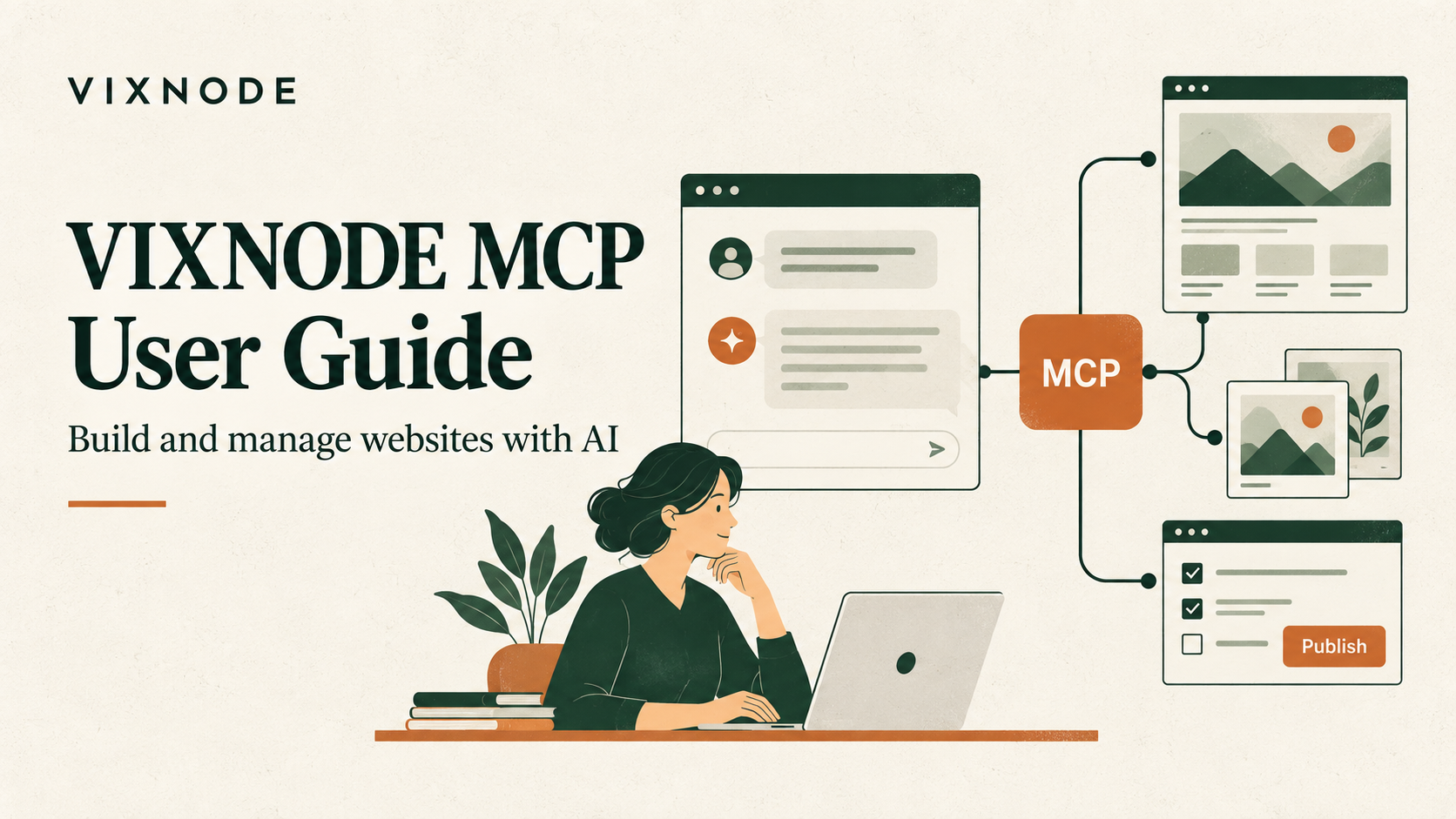
Connect MCP, check your account and website list, then review page content, public status, and publication options before executing changes.
Start with connection settings →01What can VIXNODE MCP do?
VIXNODE MCP connects compatible AI clients to VIXNODE through the Model Context Protocol, so you can build and manage websites using natural language. Ask your assistant to find projects, plan site structure, create or edit pages, manage images and files, configure SEO, connect a custom domain, or compare historical versions.
MCP provides tools and data access. VIXNODE manages the website content, assets, and public status; your AI assistant interprets your request, chooses tools, and explains the results. You do not need to remember project IDs, but you should check that the assistant has selected the correct website and page before writing changes.
This guide applies to clients that support VIXNODE's remote MCP connection and authorization method. Settings, tool approval, and interactive interfaces vary between clients. MCP support alone does not guarantee support for the same preview interface.
02What do you need before starting?
- A VIXNODE account you can sign in to and use.
- Permission to manage a website project. If you have not started a website, ask AI to help create a project.
- A client that supports remote MCP connections, with any required account or organization permissions.
- Your brand information, article text, and assets.
- For a custom domain, ownership of the domain and permission to edit its DNS.
VIXNODE plan eligibility, quotas, and feature access depend on your account and the checks performed during an operation. Your AI client's plans, features, and administrative settings are governed by that provider's official documentation.
03How do you connect VIXNODE MCP?
Remote MCP connection details
| Setting | Value |
|---|---|
| Name | VIXNODE |
| MCP Server URL | https://www.vixnode.com/mcp |
| Connection type | Remote HTTPS MCP |
| Sign-in | Complete VIXNODE sign-in and OAuth authorization in the connection flow |
Use the official service URL. Do not enter a local address or an unverified test endpoint.
Connect and verify
- Open your AI client's tools, connectors, or MCP settings.
- Select VIXNODE if it is available in the service directory. If your client supports custom remote MCP, enter the official URL above.
- Complete sign-in using the client settings and VIXNODE authorization screen, checking the connected account. Do not paste passwords or access tokens into chat.
- Enable the VIXNODE tools using your client's available controls.
- Query account information and list websites to verify the connection and select your target.
If your client does not support the required remote connection or authorization flow, use a compatible client or work through the VIXNODE platform. See the client references at the end for platform-specific guidance.
Organization environments
An organization may require an administrator to approve a remote MCP service before members connect their personal accounts. Administrators should review the service URL, sign-in method, tool scope, and organization policies.
Remote MCP requests may originate from a client's cloud service or local environment, depending on its architecture. Check the actual source when evaluating network restrictions. Local MCP settings and remote service connections may also use different mechanisms.
04First use: check your account and website
Try this promptCheck the currently connected VIXNODE account, plan, and quotas, then list the websites I can manage so I can choose one.
Try this promptOpen “Bread Workshop” and list its pages and current domain settings. If several projects have that name, let me choose first.
If the account is incorrect, reconnect or use the account-switching feature. Do not create pages, upload files, or change domains in an unverified project.
Describe your goal naturally, such as “Edit the course page for Bread Workshop.” The assistant should retrieve the actual projects and pages instead of guessing IDs, asset paths, or public URLs.
05Work by use case
01 | Create a project and plan a multi-page website
Try this promptI want a “Bread Workshop” website introducing the brand, baking classes, recipes, and contact information. Check for an existing project with that name first; if none exists, help me create one.
Try this promptPlan the Home, Classes, Recipes, and Contact pages. Show the navigation order and shared Main Layout, but do not create pages yet.
Confirm the site architecture before building pages one by one. The Main Layout owns shared structure. Add a Child Layout only when a subset of pages needs additional shared content.
02 | Prepare images, videos, and downloads
Try this promptCheck the image gallery for “Bread Workshop,” help me choose a homepage hero image, and verify the selected image's actual path and content.
Try this promptI have uploaded the course video and PDF to VIXNODE. Find the matching assets and verify their paths before adding them to the course page.
For large assets, upload through VIXNODE first and then ask AI to use them. When AI uploads a file, specify its filename, project, and storage location. Prefer private uploads for general resource files. Public files may be used directly by the live website, and uploading to the same path may overwrite an existing resource.
03 | Create a page and check its content and public settings
Try this promptCreate a beginner course page for “Bread Workshop” using the approved layout. Introduce the audience, course content, and registration method. Use the path classes and filename beginner-bread. Ask me for missing prices, dates, or addresses. Provide a preview first.
The normal creation flow uses create_project_page_preview. Review the project, content, links, public status, and publish-after-save option before confirming execution.
If you only want a draft, say: “After confirmation, save a draft only; do not publish. Make it private if access must be restricted.” Public status and publication are separate settings.
04 | Edit an existing page and preserve everything outside the requested scope
Try this promptRead the latest course page, then add my FAQ and video. Preserve the existing images, layout, and other text. Provide an edit preview first.
The normal editing flow uses modify_project_page_preview. Read the latest saved HTML first so older content does not overwrite subsequent changes.
05 | Update SEO and publish
Try this promptRead the course page's SEO title, description, and structured data. Propose changes that match its actual content and show the complete settings for my confirmation.
SEO updates modify and publish settings; they are not draft-only operations. Apply them after confirmation. Check the tool result to see whether the page has been republished, and do not submit the same publication job again.
Try this promptRetrieve the published course page, check the title, video, and download links, and provide the public URL returned by the tool.
Publishing one page replaces the live version with the latest saved content and makes a private page public. Republishing a website updates its currently public pages and skips private pages.
06 | Validate DNS, connect a domain, and check SSL
Try this promptI want “Bread Workshop” to use www.example.com. Check plan eligibility and DNS first. List the required A and TXT records, but do not bind the domain yet.
After configuring DNS:
Try this promptValidate DNS again. If it passes, help connect www.example.com. If a domain is already connected, explain the replacement impact and wait for my confirmation.
After a successful binding:
Try this promptCheck the current domain and SSL status. If activation is pending, explain the waiting status or required DNS changes. Do not bind the domain again.
Validation, connection, and SSL activation are separate steps. Replacing or removing a domain may make the existing URL unavailable. Domain operations do not publish pages.
07 | Compare historical versions and restore content
Try this promptCompare the latest homepage version with the previous one. Summarize differences in text, images, and navigation, but do not make changes.
Try this promptPrepare a preview restoring the previous Brand Story section while preserving everything else. After confirmation, save a draft only.
Viewing history does not restore content automatically. Before restoring an entire page, check which later changes would be overwritten and decide whether to publish.
08 | Change settings or disconnect a custom domain
Try this promptRead the website's general settings. Propose a website name change and a bandwidth cap for a specified period. Explain the effect on the public website, but do not change anything yet.
Try this promptI want to disconnect the current custom domain. Show the current binding and removal impact, including the public URL and project path. Wait for my confirmation before removing it.
Removing a domain clears its binding, routing, and project virtual path. It does not mean the entire project or all pages have been deleted.
06Tool scope: quick reference to 43 tools
The reviewed catalog contains 43 tools. Available tools depend on the definitions offered during connection and your account permissions. This guide uses original MCP tool names; asset-query names retain their hyphens.
| Category | Tools | Purpose |
|---|---|---|
| Account and projects (6) | get_account_info, switch_account, get_website_projects, project_info, create_project, modify_project | Check accounts and websites, create projects, and edit general settings |
| Documentation and references (3) | get_docs, get_reference_themes, get_url_html | Operation guides, visual references, and public URL analysis |
| Images (4) | get-photo-gallery, get-image, upload_image, chunk_upload_image | Find, select, and upload images |
| Videos (4) | get-video-library, get-video, upload_video, chunk_upload_video | Find and upload videos |
| Files (4) | get-file-library, get-file, upload_file, chunk_upload_file | Find, download, and upload files |
| Pages (10) | get_project_pages, get_all_project_pages, create_project_page_preview, modify_project_page_preview, create_project_page, modify_project_page, publish_project_page, publish_project, create_web_page, modify_web_page | Find pages, preview, create, edit, and publish |
| SEO (3) | get_project_page_seo_setting, get_seo_data_structure_sample, modify_project_page_seo_setting | Read, prepare, and update SEO |
| Domains (4) | validate_project_domain, configure_project_domain, get_project_domain_status, remove_project_domain | Validate DNS, connect domains, check SSL, and disconnect domains |
| Content and versions (5) | get_project_page_html, get_published_page_html, get_project_page_html_history, get_project_page_html_by_version, get_project_page_html_compare_by_version | Latest content, published versions, and historical differences |
Direct creation and editing are exceptional flows that require separate confirmation of the exact content and effects. The older create_web_page and modify_web_page tools remain for compatibility; prefer the project-page preview flows for ordinary work.
07Previews, drafts, public status, and client differences
| Operation | Result |
|---|---|
| Query or generate a preview | Does not mean content has been saved or published |
| Save a draft | Updates saved content without necessarily replacing the public version |
| Set public status | Controls public access and should be checked alongside publication |
| Publish a page | Updates the live version from the latest saved content |
| Modify SEO | Publishes settings; check the resulting page |
| Connect a domain | Updates URL-related settings without publishing pages |
Normal preview flows default to public and publish after saving. Explicitly request draft-only saving or a private page when needed.
MCP interactive-interface support varies by client. If your client displays the preview and confirmation interface, review and execute there. If that interface cannot be displayed or used, a generated preview is not a successful write. Use the VIXNODE platform, or separately confirm a supported direct-save flow after the assistant has shown the complete content and effects.
Allowing a tool call in the client is different from confirming specific website content and public status. Check the actual target and operation impact.
08Permissions and data handling
VIXNODE MCP performs operations using the connected account and each tool's permission checks. AI may read account information, projects, page HTML, SEO, asset information, and historical versions. Tool parameters may include your text, HTML, file data, and domain names.
The main data flow is:
User request → AI client calls VIXNODE MCP → VIXNODE performs the website operation → Results return to the AI client
Reading a reference URL interacts with its target website. DNS and domain/SSL operations involve external DNS information and domain services. Publishing pages, uploading public files, and changing domains also affect what external visitors can access.
Do not include passwords, tokens, or private personal information in public articles, pages, or files. Even a private resource may return its contents to the AI conversation when read through a tool.
For VIXNODE's data handling and service terms, see its Privacy Policy and service website. AI clients handle conversations and tool data under their providers' applicable policies and plan terms. This guide makes no additional commitments about retention periods or model training.
09Evaluation checklist for IT administrators
- Connection source: The remote service uses HTTPS. Determine whether the selected client sends requests from the cloud or a local environment.
- User authorization: Verify the connected VIXNODE account and its actual website permissions.
- Read scope: Evaluate the need to return account, project, page, asset, and version data to AI conversations.
- Write impact: Page and SEO publishing update live content; public files may be overwritten; domain changes may make existing URLs unavailable.
- Organization controls: Use the client's available administrative and tool-approval settings to restrict unnecessary capabilities.
- Recovery: Page history can help prepare a restoration. Do not assume file overwrites and domain removal have the same recovery mechanism.
When website writes are unnecessary, use query tools only. A client's read/write classification does not mean an operation has no external interaction. For example, domain-status queries may synchronize project status; review each tool's actual description.
10Frequently asked questions and troubleshooting
Cannot find the VIXNODE connector?
Check whether your service offers VIXNODE. If it is absent from the directory but the client supports custom remote MCP, connect using the official URL. A successful custom connection does not imply approval for that service's directory.
Cannot find tools, or seeing “Unknown tool”?
Check that the connector is enabled and sign-in is valid. Reconnect and verify the tool list in a new conversation. If the problem persists, retain the error message and time and contact support. Do not guess calls by rewriting tool names.
AI says it updated the site, but nothing changed?
Check whether the result was a preview, a saved draft, a publication schedule, or a completed publication. Verify tool status and published content instead of relying on a chat statement.
Why is SSL still pending?
Check the DNS records and waiting status supplied by the tool. After binding succeeds, query status rather than repeatedly removing and reconnecting the domain.
Can the AI assistant edit directly?
Normally use previews. For direct saving, show the complete changes, target, and effects first, then give a separate explicit confirmation. Specify publication and public settings clearly too.
How do I stop using it?
Disconnect or remove VIXNODE in your AI client's tool or connection settings. To revoke authorization on the VIXNODE side, use the account's available authorization controls or contact support. Disconnecting does not delete website content.
11Support and further reading
- VIXNODE Support
- VIXNODE Privacy Policy
- VIXNODE MCP Platform Documentation
- The Complete Guide to VIXNODE Plugin
- Build Multi-Page Websites with ChatGPT
Client references
- Claude: For connection settings and organization management, see the official remote MCP connection guide.
- ChatGPT: See The Complete Guide to VIXNODE Plugin above for use cases and examples.
- Other MCP clients: Read their remote MCP, OAuth, tool-approval, and interactive-interface documentation and verify supported features before operating.